Main menu and toolbar
Toolbar

Toolbar provides you with different quick-access options depending on which section of the application you are currently working in. When you are in the email section, the email toolbar is displayed, which provides you with quick access to various email operations. The same toolbar will provide you with different options to perform different operations when you are in calendar mode or task mode.
Menu
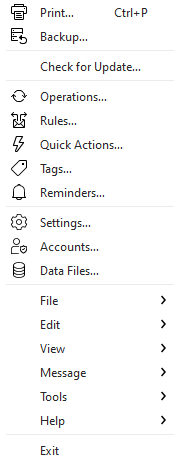
The Menu contains some of the most common functions and settings sections:
- Print... - you can print your messages, calendar, events or contacts using our print preview where you can adjust many aspects of the final layout of the page about to be printed.
- Backup... - You can backup your data.
- Check for Update...- if you click on this option, the application will try to look for available updates for your license online. If an update is found, a list of new features will be displayed and you will be prompted to confirm that you want to install the update.
- Operations... - You can view ongoing operations, any errors that might have popped up or the operations log that can be useful for troubleshooting.
- Rules...- You create rules here. You can find further information about creating rules in the topic Rules.
- Quick Actions... - You can manage Quick Actions here.
- Tags... - Here you can manage your tags active in the eM Client. You can find more information about managing tags in the topic Working with Tags.
- Reminders... - View the Reminder window with pending reminders for your events or tasks.
- Settings...- When you click on this button, a window with settings will appear. You can find more information about settings in the topic Settings.
- Accounts...- When you click on this button, a window for working with the accounts will be displayed. You can find more information in the topic Accounts.
- Data Files... - Opens the Data Files manager.
It also contains six further sections - File, Edit, View, Message, Tools, and Help.
Those further options can be brought up only by clicking on the menu button first.
Under all these you have the Exit option to fully close down the app.
File
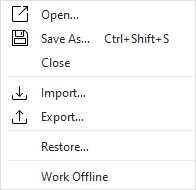
Menu File has these items:
- Open - You can open a saved email (an eml file).
- Save as - You can save a chosen email to an eml file.
- Close - Close current window.
- Import... - You can import data to the application.
- Export... - You can export data from the application.
- Restore... - You can restore your data.
- Work offline - When you choose this setting, the application will work without connecting to Internet. If you send an email, it will be saved and it will be sent after connecting to Internet.
Back to menu.
Edit
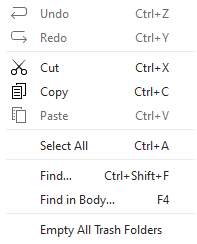
Menu Edit has many items:
- Undo - If you delete something, you can undo the operation of deleting.
- Redo - If you performed undo operation, you can now perform redo and the retrieved operation will be deleted.
- Cut - Cutting copies selected item into clipboard and removes the item from its current place.
- Copy - When you click on this button, it will make a copy of the selected item.
- Paste - Paste will insert the item currently stored in clipboard (one that was previously cut or copied).
- Select all - All items will be selected.
- Find... - You can perform textual search - either simple, or you can specify advanced options for your search.
- Clicking on Find option will bring your focus to the Search in the top right corner of the window, opening the Advanced Search pop-up (see below).
- Find in Body... - This option will bring up a simple search window to search inside the body of currently opened message.
- Empty All Trash Folders - This option, as the name suggests, will permanently delete all messages in all Trash folders in the program (the Local folders and all your accounts' folders).
Advanced Search
Advanced search represents a smart utility that enables you to search with predefined rules which will filter out particular emails from the global folders, i.e. folders where all your emails are stored. As you can see in the picture, search window consists of two parts: textual form of query and the visual form of query.
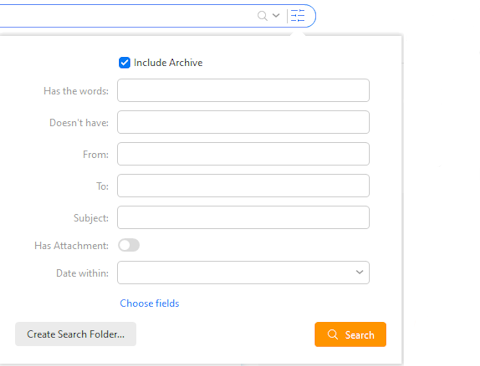
To learn more about working with search queries and about creating a filtered folder see Search Folders.
Back to menu.
View
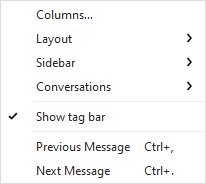
Menu view has many items:
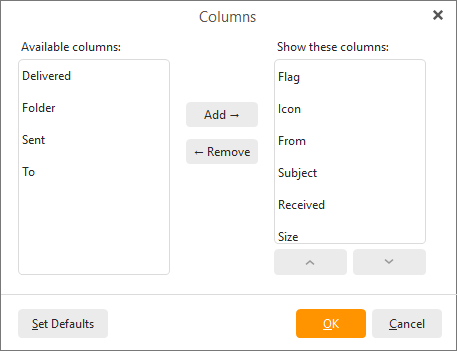
- Columns... - You can select columns which you want to see in the list of emails. You can also change the order of columns.
- Layout - You can change position of the panel with messages - Messages on the bottom, Messages on the right, Messages panel off.
- Sidebar- You can change layout of the sidebar.
- Conversations - Enables you to customize and specify conversations.
- Show tag bar - Enable or disable the bar with assigned Tags above the message header in message preview.
- Previous message - The selected item is changed to previous message.
- Next message - The selected item is changed to next message.
Back to menu.
Message
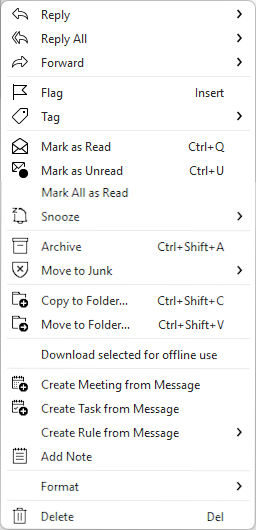
Actions menu differs according to the section where you currently are (mail, calendar, tasks, contacts etc.)
Actions Menu has several items:
- Reply - When you click on this button, you will reply to a selected email.
- Reply All - When you click on this button, you will reply to all people in a selected email. (for example to people in CC)
- Forward - You can send a selected email to another person. Moreover you can choose from three actions: Forward..., Forward as Attachment..., Forward as Original... and Resend...
- Flag - by clicking this, you will add a flag to your message (event etc.) - for example to mark the emails you need to reply to etc.
- Tag- you can choose a color tag that will be added to the message.
- Mark as Read - You can mark your unread email as read.
- Mark as Unread - You can mark your email as unread. It is useful when you read an email but you don't have a time to answer it so you can mark it as unread.
- Mark All as Read - You can mark all your emails as read.
- Snooze - Snooze your message to be re-added to your inbox at a more convenient time.
- Archive -Move the message into the Archive folder.
- Move to Junk - You can select from three options: Move to Junk, Move to Junk and blacklist email, Move to Junk and blacklist domain.
- Copy to Folder… - You can copy a selected item into another folder. Last 10 folders you copied messages to will be remembered in copy history.
- Move to Folder... - You can move a selected item to another folder. Last 10 folders you moved messages to will be remembered in move history.
- Download Selected for offline use - You can download selected items.
- Create Meeting from Message - You can create a meeting directly from the message.
- Create Task from Message - You can create a task directly from the message.
- Create Rule from Message- Quickly create a rule based on this messages sender or subject.
- Add Note - Add a local note to your message without altering the original.
- Format - Easily switch the view of current message from HTML to Plain text and vice versa.
- Delete - Deletes the message.
Back to menu.
Tools
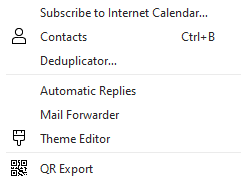
Menu Tools has these items:
- Subscribe to Internet Calendar… - You can set up a calendar access directly from here.
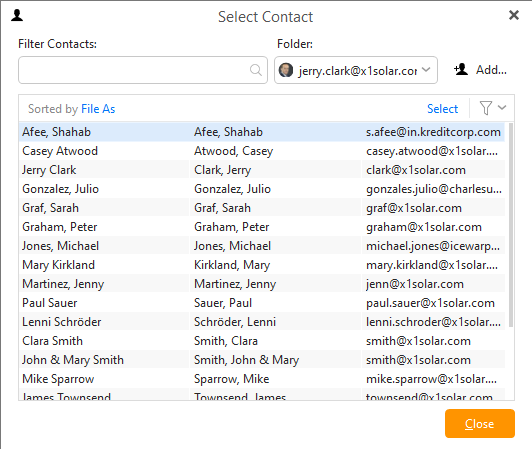
- Contacts - Clicking on Contacts will bring up the Address Book (see below). This feature can be used for selecting the particular contact that you want to send a message to. Start writing contacts's initial letters to search for particular contact.
- Deduplicator... - Deduplicator is a tool which enables you to get rid of duplicate (multiple) items in following areas: mails, events, tasks, contacts. Click on Deduplicator to bring up following window:
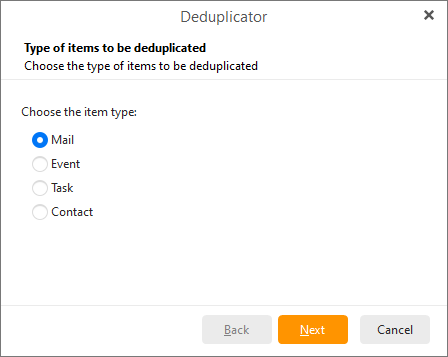
Select the item type and click on Next:
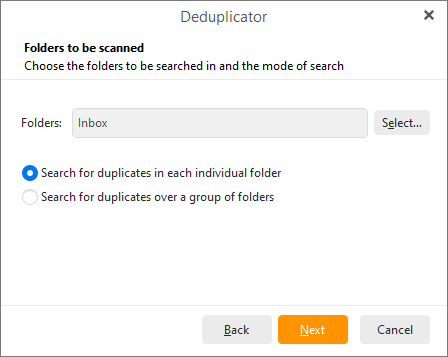
Here you can select folders that will be searched for duplicate files and moreover you can specify whether you want to search for duplicates in each individual folder or over a group of folders. When you are finished click on the Next button.
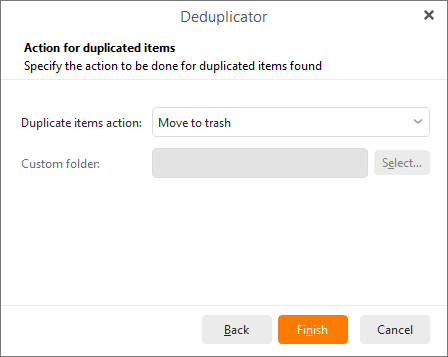
Here specify the action to be done for duplicated items found. Click on Finish to finish the process.
- Automatic Replies - With a Google, Exchange/Office365 or IceWarp account you can set up automatic responses for all your messages when you're out of office or away on holiday.
- Mail Forwarder - With an IceWarp account you can set up automatic forwarding for your messages.
- Theme Editor - Open the Theme Editor to create your own theme or tweak one of the existing ones to your preference, find more details in Themes settings.
- QR Export - used to export data to mobile version of eM Client via a QR code.
Back to menu.
Help
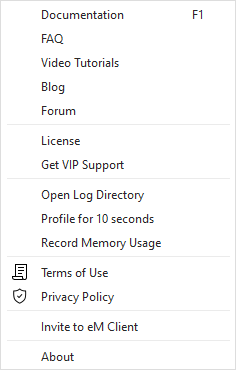
Menu Help has several items:
- Documentation - When you click on this button, a web browser window with the eM Client documentation will display.
- FAQ - link to the Frequently Asked Questions section of our website
- Video Tutorials
- Blog - link to the company blog which can provide more details on certain features and updates or current issues.
- Forum - Community forum for all users, main support hub for users with Free licenses and expired VIP Support
- License - Here you can view, activate or deactivate your license.
- Get VIP support -link to the online support web pagefor Pro license users with active VIP Support subscription.
- Open Log Directory - opens the Logs folder containing all created .log files
- Profile for 10 seconds - Create profile log that runs for 10 seconds and then saves into a text file, which can befound in the Logs folder. This can be useful for freezes and other issues in eM Client that do not have dedicated logging options in the Advanced settings.
- Record Memory Usage - Creates special log file to analyze memory usage of the program.
- Terms of Use - link to eM Client Terms of Use
- Privacy Policy- link to eM Client's Privacy policy
- Invite to eM Client - when you click on this button, a window with invitation to eM Client for your friends will appear. You can invite them using: email, Twitter or Facebook.
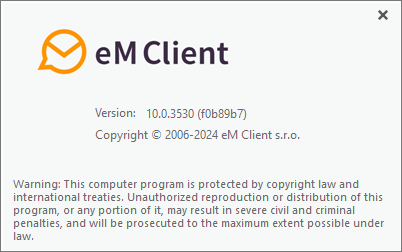
- About - You can click on this button to see more information about this product and can copy the currently installed version here.
Back to menu.
Touch Input interface
eM Client supports touch-operated devices, if your device has such utility, you will be able to switch to touch-operated mode by clicking on the appropriate icon in the right upper corner of eM Client window:
If you switch to the touch mode, all icons and features of the application will become a little larger in order to easily control the application.
In the touch mode:
- You can scroll in all menus by touch movement (context menus etc.).
- In calendar view you can move in all directions by touching the screen.
- By the pinch-to-zoom action you can change the number of weeks displayed in the month view of the calendar as well as zoom in/out in the week view.
Copyright ©
2025 eM Client s.r.o.
Thámova 18
Prague, 186 00
Czech Republic
[email protected]